

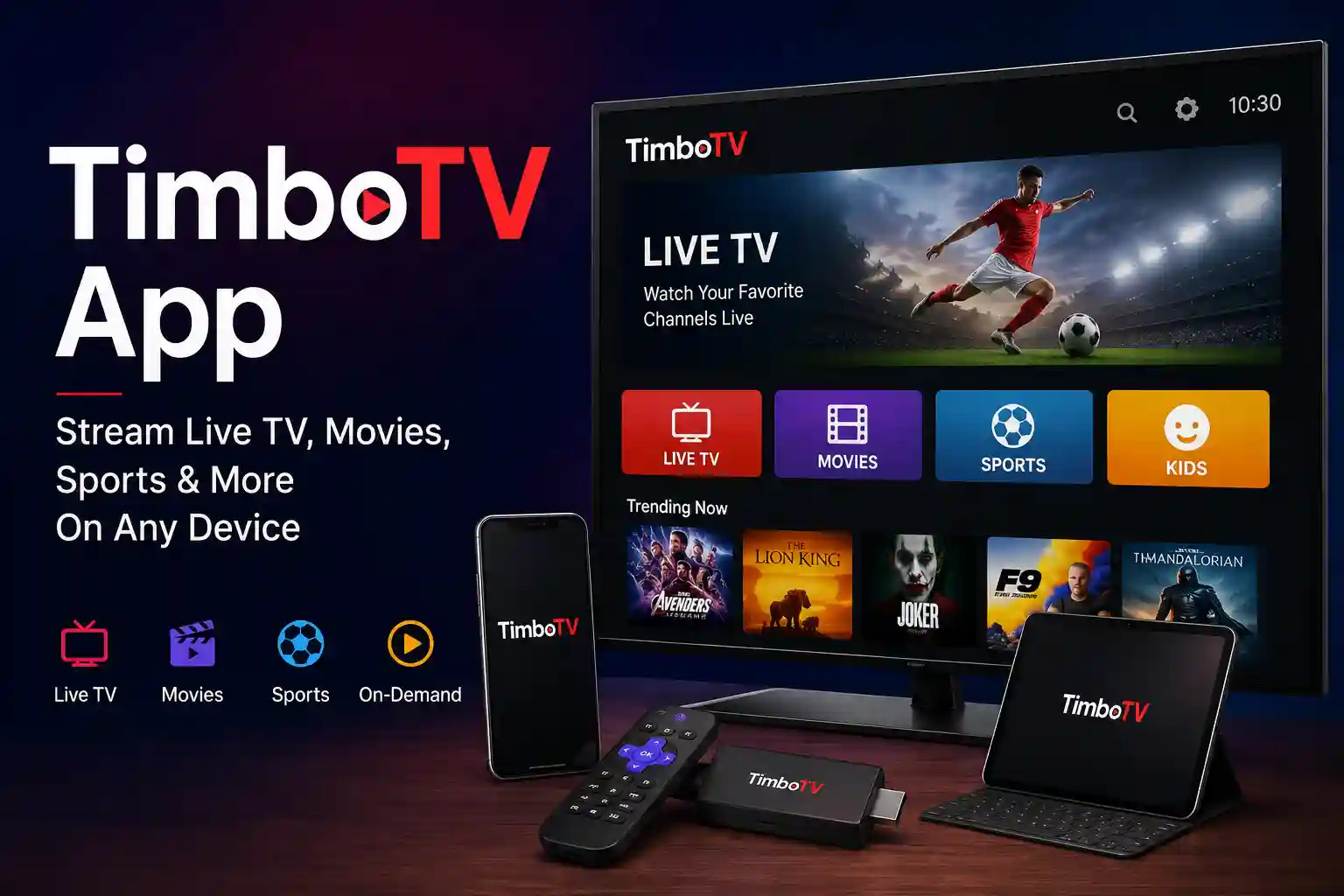
The TimboTV App is a streaming application designed to provide access to television channels and, depending on the service plan or content library, additional entertainment such as movies, sports, and on-demand programming. It brings multiple viewing options into a single interface, making it easier to browse available content across supported devices.
One of the main reasons for its growing popularity is its compatibility with a variety of platforms, including Android phones, Android TV, Firestick, Google TV, and certain Smart TVs. This flexibility allows viewing across different screen sizes while maintaining a consistent experience.
This guide explains everything worth knowing about the TimboTV App, including its core features, download options, installation methods, supported devices, safety considerations, and practical troubleshooting steps. It also covers important information about app permissions, compatibility, and update recommendations to help ensure smooth performance.
Whether setting it up on a mobile device or a television, understanding how the application works can help avoid common installation and playback issues while making the most of its available streaming capabilities.
What Is the TimboTV App? An Overview
The TimboTV App is a streaming platform that brings television and digital entertainment into a single application. Depending on the provider’s available content and subscription offerings, it may include live TV channels, movies, sports programming, and on-demand content through one interface.
Unlike traditional cable services, TimboTV streaming is designed for internet-connected devices, allowing compatible hardware to access available content without requiring separate equipment. The application focuses on delivering a straightforward viewing experience with organized categories, simple navigation, and playback controls that are familiar to most streaming app users.
The home screen typically displays content categories, recently viewed items, and available channels or media libraries. A built-in navigation menu helps move between sections quickly, while the search function allows specific channels or titles to be located without manually browsing large libraries. Many versions also include favorites or watchlist features for faster access to frequently watched content.
Because the interface is designed with simplicity in mind, both new and experienced streaming users can usually become familiar with the layout in a short time. Playback options such as pause, resume, and full-screen viewing further improve usability on supported devices.
As a TimboTV app review would generally note, the application’s overall experience depends on several factors, including internet speed, device performance, app version, and the content supplied by the service provider. Streaming quality may also vary based on available bandwidth and the selected video resolution.
Those wondering what is TimboTV can think of it as a streaming application that aims to combine television viewing and digital entertainment within a single platform while supporting multiple device types for convenient access.
Key Features of the TimboTV App You Should Know
The TimboTV App includes a range of features intended to make streaming more convenient across compatible devices. Although available functionality may vary by provider or app version, several core capabilities are commonly found.
Live TV Streaming
One of the primary TimboTV app features is support for live TV streaming. Available channels depend on the service package and regional availability. Categories may include:
- News
- Entertainment
- Sports
- Kids’ programming
- Lifestyle
- Documentary channels
Channel availability can change over time as providers update their content libraries.
On-Demand Content
In addition to live television, some TimboTV streaming services provide access to on-demand content. Depending on the subscription or provider, this may include:
- Movies
- Television series
- Recently added programs
- Special event replays
Having both live and on-demand viewing within one application reduces the need to switch between multiple streaming platforms.
Streaming Quality
Streaming quality depends on internet speed, device capabilities, and the available video source. Many supported versions can automatically adjust video resolution to maintain smoother playback when network conditions change.
A stable broadband connection generally provides the best viewing experience, particularly for higher-resolution streams.
Easy Navigation
The interface is organized into clearly labeled sections, making it easier to browse available content. Categories, channel lists, and media libraries are arranged to minimize unnecessary navigation.
The clean layout also helps larger-screen devices such as Android TV and Smart TVs remain easy to operate with a remote control.
Built-in Search Function
The search feature allows quick access to channels, movies, or available programs without manually browsing every category.
This is especially useful when extensive content libraries are available through the service provider.
Favorites and Watchlists
Many versions allow favorite channels or selected content to be saved for quicker access later.
Common benefits include:
- Faster navigation
- Personalized viewing lists
- Reduced browsing time
- Easier access to frequently watched channels
Multiple Device Support
Another notable TimboTV app feature is compatibility with multiple platforms. Depending on official support, the application may work across:
- Android smartphones
- Android tablets
- Android TV
- Google TV
- Amazon Fire TV
- Firestick
- Selected Smart TVs
Some providers may also offer additional compatibility through dedicated versions or web-based access where available.
Playback Controls
Standard playback tools help improve the viewing experience. Depending on the content type, these may include:
- Play and pause
- Resume playback
- Fast forward
- Rewind
- Full-screen mode
- Volume controls
Availability varies between live broadcasts and on-demand programming.
Regular Updates
App updates may introduce:
- Performance improvements
- Bug fixes
- Security enhancements
- Better compatibility with newer devices
- Interface refinements
Installing the latest version can help reduce playback issues and improve overall stability.
Clean Interface Design
The TimboTV user interface focuses on simplicity rather than unnecessary visual clutter. Menus are generally arranged logically, making it easier to locate channels, browse available content, adjust settings, and manage playback without a steep learning curve.
Overall, the combination of live TV support, on-demand viewing, organized navigation, search functionality, playback controls, and compatibility with multiple devices makes the TimboTV App a versatile streaming solution for a variety of viewing preferences. As with any streaming application, the exact feature set depends on the provider, app version, and supported device.
How to Download the TimboTV App Safely
Downloading any streaming application from a reliable source is an important first step. Doing so helps reduce security risks, ensures access to the latest features, and minimizes compatibility issues caused by outdated or modified installation files.
Download From Official Sources
Whenever possible, obtain the application directly from its official website or an authorized distribution platform. Official downloads are more likely to receive regular updates, bug fixes, and security improvements.
If an official app store version is available for your device, that should generally be the preferred installation method.
APK Download Considerations
Some Android-based devices require installing an APK file instead of downloading through an app store. Before proceeding, confirm that the APK matches the latest available version and has not been altered by an unknown third party.
When downloading an APK, consider the following:
- Verify the version number before installing.
- Download only from trusted and reputable sources.
- Check the file size for unexpected differences.
- Review the requested permissions during installation.
- Delete older installation files after updating.
Avoid APKs advertised as “premium unlocked,” “modded,” or “cracked.” Modified packages may contain unwanted code, outdated software, or malware that could compromise device security.
Review Requested Permissions
Before completing installation, review the permissions requested by the application. Streaming apps commonly request access to network connectivity and local storage for caching or configuration files.
If a permission appears unrelated to the app’s functionality, consider whether it is necessary before granting access.
Keep the Latest Version Installed
Using the latest version helps improve stability, compatibility, and overall performance. Updates often address known bugs, improve playback, and enhance support for newer Android versions and streaming devices.
Taking a few minutes to verify the download source and installation file can significantly reduce the risk of installation problems or security concerns later.
How to Install the TimboTV App on Different Devices
Installation steps vary depending on the operating system and hardware. Most supported platforms follow a similar process, although certain devices require additional permission settings before installation can begin.
Android
Android smartphones and tablets offer one of the simplest installation methods.
If the application is available through an official app marketplace, open the store, locate the app, and tap Install. Once the download finishes, launch it from the app drawer and complete any initial setup.
For APK installation:
- Download the latest APK file from a trusted source.
- Open Settings > Security or Privacy.
- Enable Install unknown apps for the browser or file manager being used.
- Locate the downloaded APK file.
- Tap the file and select Install.
- Open the application after installation is complete.
If installation fails, verify that enough storage space is available and confirm that the APK is compatible with your Android version.
Android TV
Installing on Android TV follows a similar process but is optimized for television interfaces and remote control navigation.
When available through an official app store:
- Open the app store on the television.
- Locate the application.
- Select Install.
- Launch it from the Apps menu after installation.
For manual installation using an APK:
- Download the APK to a USB drive or cloud storage.
- Install a file manager if one is not already available.
- Enable installation from unknown sources.
- Open the APK using the file manager.
- Follow the on-screen installation prompts.
If the application does not appear after installation, restarting the television often refreshes the app list.
Firestick
Amazon Firestick requires enabling developer installation settings before sideloading an APK.
Follow these steps:
- Open Settings.
- Navigate to My Fire TV.
- Open Developer Options.
- Enable installation from unknown sources for the appropriate application.
- Install a downloader or file management utility.
- Download the latest APK from a trusted source.
- Open the downloaded file and begin installation.
- Launch the application from the Apps section.
If installation stops unexpectedly, clear unnecessary files to free storage space and restart the device before trying again.
Smart TV
Support for Smart TVs depends on the operating system used by the manufacturer. Android-based Smart TVs generally offer the broadest compatibility.
Installation usually involves:
- Opening the built-in app marketplace if supported.
- Downloading the application directly when available.
- Installing an APK manually on compatible Android TV systems if necessary.
- Completing any requested permissions.
- Opening the application from the home screen.
Televisions running proprietary operating systems may not support Android APK installation. In those cases, compatibility depends entirely on whether an official version has been released for that platform.
iPhone or iPad
Installation on iPhone and iPad is possible only if an official iOS version is available.
When officially supported:
- Open the App Store.
- Locate the application.
- Tap Get or Install.
- Wait for the installation to finish.
- Launch the app and complete any required sign-in or setup.
Unlike Android devices, iOS does not allow standard APK installation. Attempting to install Android APK files on an iPhone or iPad is not supported.
Common Installation Issues
Occasionally, installation may not complete successfully. Most problems have straightforward solutions.
Insufficient storage
Free additional storage space before installing or updating the application.
Unsupported operating system
Check the minimum operating system requirements published by the developer.
Corrupted APK file
Delete the downloaded file and obtain a fresh copy from a trusted source.
Permission restrictions
Ensure that installation from unknown sources has been enabled only when required and only for trusted installation files.
Installation blocked
Some security software may temporarily prevent installation. Confirm that the file is legitimate before adjusting security settings.
After installation, checking for updates periodically helps maintain compatibility, improve streaming performance, and reduce the likelihood of playback or stability issues across Android phones, Android TV, Firestick, and supported Smart TVs.
Supported Devices and Compatibility
Before installing any streaming application, it’s worth confirming that the hardware and operating system meet the minimum requirements. Compatibility affects everything from installation to playback quality, so checking supported platforms can prevent unnecessary setup issues.
Android Phones and Tablets
Android remains the most widely supported platform. Devices running a recent Android version typically offer the smoothest experience, provided they have sufficient storage, available memory, and a stable internet connection.
Older smartphones may still install the application, but slower processors or outdated software can lead to delayed navigation or reduced streaming quality.
Android TV
Android TV is designed for large-screen entertainment, making it one of the most suitable platforms for streaming. The television interface is optimized for remote control navigation, allowing quick access to channels, content categories, and settings.
Performance largely depends on the TV’s processor and available system resources.
Amazon Fire TV and Firestick
Fire TV devices and Firestick models can run the application through supported installation methods. Once configured correctly, navigation is straightforward with the included remote.
Storage limitations on entry-level Firestick models may occasionally affect performance if too many applications are installed simultaneously.
Google TV
Devices powered by Google TV generally provide compatibility similar to Android TV because both platforms share the same underlying operating system.
Recent Google TV devices typically support smoother navigation, improved voice controls, and better integration with streaming applications.
Smart TVs
Compatibility varies by manufacturer.
Smart TVs based on Android TV usually provide the broadest support. In contrast, televisions running proprietary operating systems may only work if an official version has been released for that platform.
Before attempting installation, verify whether the television supports Android applications or offers the app through its native marketplace.
Windows and macOS
An official desktop version may not always be available. Some providers instead offer browser-based access or recommend using supported mobile and television platforms.
Running Android applications through third-party emulators is possible in some cases, but performance and compatibility can vary considerably.
iPhone and iPad
Apple devices can install the application only if an official iOS version has been published. Since iOS does not support Android APK files, installation methods differ completely from Android devices.
Checking official availability before attempting installation helps avoid unnecessary troubleshooting.
Is the TimboTV App Safe to Use?
Safety depends less on the application itself and more on where it is obtained. Downloading installation files from trusted sources significantly lowers the risk of malware, altered code, or compromised software.
Check App Permissions
Every application requests certain permissions to perform its intended functions. Streaming apps commonly ask for network access and storage permission to cache media files or save configuration settings.
Before granting access, review each permission carefully. Requests unrelated to streaming functionality deserve additional scrutiny.
Download APK Files Carefully
If installation requires an APK, confirm that the file originates from a reputable source. Modified installation packages are more likely to contain unwanted software or outdated code.
Before installing:
- Verify the version number.
- Compare the file size with previous releases if available.
- Scan the APK with reputable security software.
- Avoid unofficial “premium” or modified versions.
These simple checks can substantially reduce security risks.
Keep the Application Updated
Developers frequently release updates that address software bugs, improve compatibility, and resolve known security vulnerabilities.
Running an outdated version may increase the likelihood of crashes, playback problems, or compatibility issues with newer operating systems.
Protect Your Privacy
If the application requires account credentials, use a strong and unique password. Avoid sharing login information across multiple services, and sign out of devices that are no longer in use.
Public Wi-Fi networks should be used cautiously, particularly when signing into streaming accounts.
Legal Considerations
The application’s legality depends on several factors, including the content provider, licensing arrangements, and local regulations.
Rather than assuming every source offers properly licensed content, verify that the streaming service complies with applicable laws in your region. Reviewing the provider’s official documentation can offer additional clarity regarding available content and service policies.
Troubleshooting Common TimboTV App Issues
Even after a successful installation, occasional technical issues may interrupt streaming. Most problems can be resolved without reinstalling the application by following a few systematic checks.
App Won’t Install
Installation failures usually result from one of four causes: insufficient storage, an incompatible operating system, a corrupted APK file, or restricted installation permissions.
Try the following steps:
- Confirm that enough storage space is available.
- Download the installation file again if corruption is suspected.
- Verify that the APK matches your device architecture.
- Enable installation from unknown sources only when required.
- Restart the device before attempting another installation.
Buffering During Playback
Buffering is commonly related to internet performance rather than the application itself.
To improve streaming quality:
- Restart the router.
- Switch to a faster Wi-Fi network if available.
- Close background downloads consuming bandwidth.
- Lower the video quality temporarily on slower connections.
- Restart the application after restoring network stability.
A consistent internet connection usually provides the greatest improvement.
Login Problems
If sign-in fails, begin by confirming that the account credentials have been entered correctly.
Additional troubleshooting steps include:
- Reset the password if necessary.
- Check whether the subscription remains active.
- Verify that the application is running the latest version.
- Clear cached data before attempting another login.
If authentication continues to fail, contacting the service provider may be necessary.
Black Screen After Launch
A black screen often indicates a loading failure or compatibility issue.
Possible solutions include:
- Force close the application.
- Restart the streaming device.
- Clear the application cache.
- Install the latest available update.
- Reinstall the application if the problem persists.
Persistent display issues may also indicate unsupported hardware or outdated system software.
App Crashes Frequently
Unexpected crashes are often caused by outdated software, insufficient memory, or corrupted temporary files.
The following steps typically resolve the issue:
- Install available updates.
- Close unused background applications.
- Restart the device.
- Clear cache and temporary data.
- Reinstall the application if crashes continue.
Regular maintenance helps maintain stable performance over time.
Playback Errors
Playback errors may appear when content fails to load or streaming stops unexpectedly.
To resolve them:
- Test another channel or title to determine whether the issue is content-specific.
- Confirm that the internet connection remains stable.
- Restart both the application and the device.
- Update to the latest version.
- Check whether the streaming service is experiencing temporary maintenance.
If the same error appears across multiple devices, the issue is more likely related to the service rather than local hardware.
Most installation, playback, and performance issues can be resolved through basic troubleshooting without advanced technical knowledge. Keeping the application updated, maintaining adequate storage space, and downloading software only from trusted sources significantly improves long-term stability while reducing the likelihood of recurring problems.
Conclusion
The TimboTV App offers a convenient way to access streaming content across a variety of compatible devices. Depending on the service provider, available features may include live TV, on-demand entertainment, playback controls, and an interface designed for straightforward navigation on both mobile devices and televisions.
Before installing, confirm that your device is supported and download the application only from trusted or official sources whenever possible. Reviewing requested permissions, keeping the latest version installed, and following recommended security practices can help maintain reliable performance while reducing potential risks.
Whether using Android, Firestick, Google TV, or a compatible Smart TV, choosing the correct installation method and staying up to date with software releases contributes to a smoother streaming experience. For anyone considering the platform, evaluating its features, compatibility, and content availability against individual viewing needs provides the most balanced basis for deciding whether it is the right fit.
Frequently Asked Questions
What is the TimboTV App?
TimboTV App is a streaming application designed to provide access to television channels and, depending on the service, additional entertainment such as movies, sports, and on-demand content. It supports multiple compatible devices, allowing content to be viewed on smartphones, streaming devices, and certain Smart TVs.
Is the TimboTV App free?
Availability depends on the service provider. Some versions may offer free access to limited features, while others require a subscription or account credentials. Before installing, review the provider’s pricing, available plans, and supported features to understand what is included.
Can I install the TimboTV App on Firestick?
Yes, Firestick installation is possible when the application supports Amazon’s platform. Depending on availability, it can be installed through an official source or by sideloading an APK after enabling the necessary developer settings. Always download installation files from trusted sources.
Does the TimboTV App work on Smart TVs?
Compatibility varies by television manufacturer and operating system. Android-based Smart TVs generally provide broader support, while proprietary platforms may require an official version released specifically for that operating system. Checking compatibility before installation is recommended.
Is the TimboTV App safe?
Safety depends largely on the download source. Installing the latest version from an official or reputable provider reduces the risk of malware or modified software. Reviewing requested permissions and keeping the application updated also helps improve security.
Why is the TimboTV App buffering?
Buffering is usually caused by an unstable internet connection, limited bandwidth, network congestion, or temporary service interruptions. Restarting the router, reducing video quality, closing background downloads, and checking connection speed often resolve playback interruptions.
How do I update the TimboTV App?
If installed from an official app store, updates are typically delivered through the store’s update system. APK installations require downloading the latest compatible version from a trusted source and installing it over the existing version without removing personal settings, when supported.
What devices support the TimboTV App?
Support depends on the version provided by the developer or service provider. Commonly supported platforms include Android smartphones, Android tablets, Android TV, Google TV, Amazon Fire TV, Firestick, and selected Smart TVs. iOS, Windows, and macOS availability should be confirmed through official sources.
