

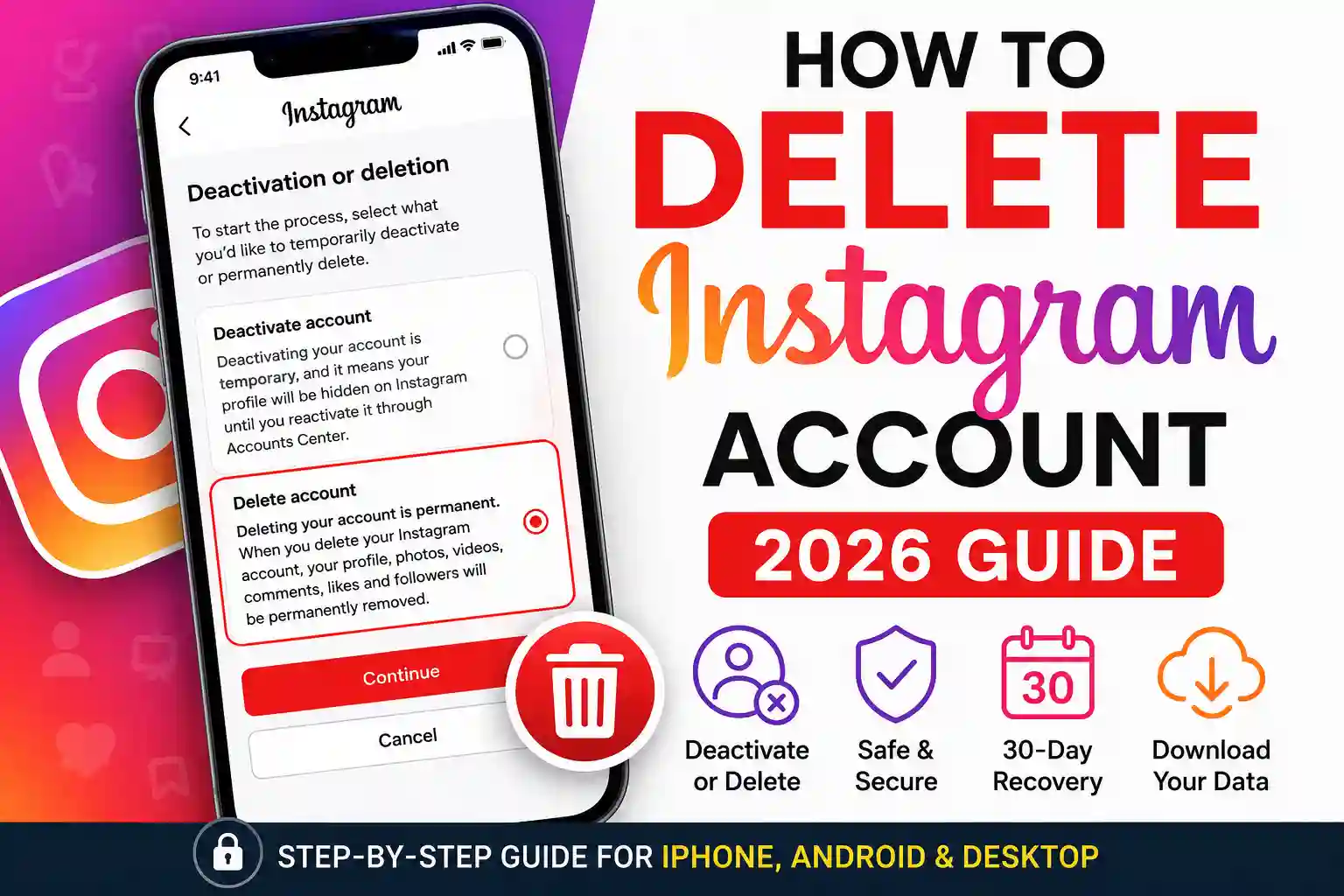
If you’ve tried to delete your Instagram account and can’t find the button you’re not imagining it. Instagram (owned by Meta Platforms) deliberately buries its permanent deletion option, and the steps changed again after the 2025 Accounts Center redesign.
This guide shows you exactly how to delete Instagram account settings in 2026, whether you’re on iPhone, Android, or a desktop browser. If you’re searching for how to delete Instagram account options without getting lost in Meta’s menus, this walkthrough keeps everything simple and updated.
This guide also covers the real difference between deactivating and permanently deleting because they are not the same thing, and mixing them up can be a costly mistake.
Delete vs. Deactivate Instagram: The Difference That Actually Matters
Quick Answer: Deactivating your Instagram account temporarily hides your profile, posts, and likes from other users but your data is fully preserved. Permanently deleting your account removes everything: photos, videos, messages, and account details. Deletion kicks in after a 30-day grace period and cannot be undone.
What Deactivating Your Instagram Account Actually Does
When you deactivate Instagram, your profile disappears from search results. Your posts, followers, and DMs are hidden but Instagram keeps all of it safely stored on Meta’s servers.
The moment you log back in, everything returns exactly as you left it. No data is lost. This is Instagram’s version of “putting it on pause” designed for people who want a social media break without fully walking away.
⦁ Your profile becomes invisible to other users
⦁ Your posts, likes, and comments are temporarily hidden
⦁ Your followers remain intact
⦁ Reactivation is instant just log back in
What Permanent Deletion Means And Why There’s No Undo
Permanent deletion is a one-way door. Once the 30-day recovery window closes, Instagram removes your username, photos, videos, Reels, Stories, DMs, and account information from its active systems.
Under Meta’s Data Policy (updated 2024), some residual data may be retained for up to 90 days after deletion for legal, safety, and technical purposes but it won’t be accessible to you or visible to anyone else.
Which One Should You Choose?
| Feature | Deactivate | Permanently Delete |
| Profile visibility | Hidden | Removed |
| Data preserved? | Yes, fully | No (after 30 days) |
| Can you come back? | Yes, anytime | Only within 30 days |
| Followers preserved? | Yes | No |
| Best for | Social media break | Leaving for good |
How to Delete Your Instagram Account Permanently (Step-by-Step, 2026)
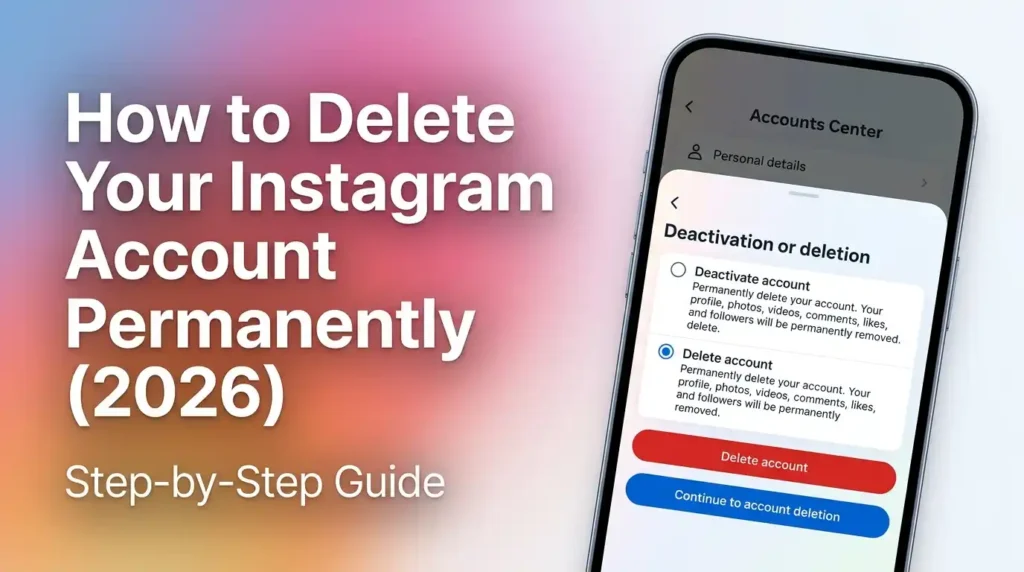
Quick Answer: To permanently delete your Instagram account in 2026, open Instagram in a browser, go to your profile, tap Settings, select ‘Accounts Center,’ choose ‘Personal details,’ then ‘Account ownership and control,’ select ‘Deactivation or deletion,’ pick your account, choose ‘Delete account,’ and confirm with your password.
Important heads-up: Instagram intentionally limits the deletion flow on mobile apps. The most reliable method and the one that works across all devices is using a web browser.
Deleting Instagram From a Browser (The Most Reliable Method)
This works on any device: phone browser, laptop, or desktop PC. If you’re wondering how to delete Instagram account access permanently, this is the most reliable method available in 2026.
- Open instagram.com in your browser and log in
- Tap your profile photo (top right) → go to your profile
- Click the menu icon (three lines) → tap ‘Settings’
- Scroll down and tap ‘Accounts Center’ (this is Meta’s unified hub)
- Tap ‘Personal details’ → then ‘Account ownership and control’
- Select ‘Deactivation or deletion’
- Choose the Instagram account you want to delete
- Select ‘Delete account’ and tap ‘Continue’
- Choose a reason from the dropdown (required by Instagram)
- Enter your password to confirm → tap ‘Delete account’
After this, Instagram gives you a 30-day window. If you log back in anytime during those 30 days, your deletion request is automatically cancelled.
Deleting Instagram on iPhone or iPad (iOS 17+)
As of the 2025 Instagram update for iOS, deletion can now be initiated inside the app but it still redirects you to the Accounts Center web flow.
- Open the Instagram app on your iPhone
- Tap your profile picture (bottom right) → tap the menu icon
- Go to ‘Settings and privacy’ → scroll to ‘Account’
- Tap ‘Accounts Center’ → ‘Personal details’ → ‘Account ownership and control’
- Select ‘Deactivation or deletion’ and follow the same browser steps above
If Instagram redirects you to a browser page, that’s normal complete the steps there.
Deleting Instagram on Android (2025 UI)
The Android flow is nearly identical to iPhone after the 2024 interface unification.
- Open Instagram → tap your profile picture → menu icon (top right)
- Tap ‘Settings and privacy’ → ‘Account’
- Select ‘Accounts Center’ → ‘Personal details’
- Tap ‘Account ownership and control’ → ‘Deactivation or deletion’
- Choose your account, select ‘Delete account,’ and confirm
Many Android users searching for how to delete Instagram account settings miss the Accounts Center section because Meta moved it during the redesign.
What to Do If Your Instagram Is Linked to Facebook
If you originally signed up for Instagram using your Facebook account, deletion works through the same Accounts Center flow but pay close attention to which account you select.
Deleting your Instagram account via Accounts Center does NOT delete your Facebook account. They are treated as separate entities within Meta’s ecosystem. You’ll need to delete each one individually if you want to remove both.
Tip: Before deleting, download your Instagram data (Settings → Accounts Center → Your information and permissions → Download your information). This saves your photos, DMs, and follower list.
How to Delete One Instagram Account Without Touching Your Others
Quick Answer: Instagram lets you manage multiple accounts independently. Deleting one account does not affect your others. Simply switch to the specific account you want to delete before starting the Accounts Center deletion flow.
How Instagram Handles Multiple Accounts in 2026
Instagram allows up to five accounts per device, each with its own independent profile, followers, and settings. They are not automatically linked to each other only to your Meta Accounts Center if you’ve connected them there.
Deleting one account has zero effect on your remaining accounts. Your followers, posts, and data on the other profiles stay completely untouched.
Step-by-Step: Switching and Deleting Only One Account
- On the Instagram app, tap your profile picture
- At the top of the screen, tap your username a dropdown shows all your accounts
- Switch to the specific account you want to delete
- Now follow the deletion steps in the H2 #2 section above
- Confirm you’re deleting the correct account check the username shown on the confirmation screen
Double-check the username displayed before you confirm. Deleting the wrong account is irreversible after 30 days.
What Actually Happens to Your Data, Photos, and DMs After You Delete Instagram
Quick Answer: After you request deletion, Instagram begins a 30-day countdown. During this time, your profile and content are hidden but not yet erased. Once 30 days pass, your photos, videos, DMs, and account info are removed from Instagram’s active systems. Meta may retain some residual data for up to 90 days for legal purposes.
The 30-Day Recovery Window Explained
The 30-day grace period is Instagram’s safety net built for people who change their mind. During these 30 days:
⦁ Your account is hidden but technically still exists
⦁ No one can find your profile or see your posts
⦁ Logging in at any point cancels the deletion automatically
⦁ After day 30, deletion becomes permanent and irreversible
Anyone researching how to delete Instagram account permanently should understand this recovery period before confirming deletion.
What Meta Keeps After Your Account Is Deleted
According to Meta’s Data Policy, even after your account is deleted, certain types of information may be retained for a limited period typically up to 90 days for the following reasons:
⦁ Legal compliance and law enforcement requests
⦁ Safety and fraud investigation purposes
⦁ Technical backup systems (which cycle out naturally)
Under GDPR rights (for EU users), you can submit a formal data deletion request to Meta for any residual data. Users in other regions can also contact Meta’s Privacy Center.
Can People Still See Your Tagged Photos After You Delete?
Photos and posts where other users tagged you will remain visible on their profiles, even after your account is deleted. However, your username will no longer be clickable it becomes a plain text mention rather than an active link to a profile.
If you want specific tagged photos removed, you must request the original poster to delete them before closing your account.
How to Temporarily Deactivate Instagram (If You’re Not Ready to Delete)
Quick Answer: To deactivate Instagram, go to your profile, tap Settings, select ‘Account,’ then ‘Deactivation or deletion,’ choose ‘Deactivate account,’ and confirm. Your profile hides immediately and returns the moment you log back in.
How to Deactivate Instagram on iPhone and Android
- Open Instagram and go to your profile
- Tap the menu icon → ‘Settings and privacy’ → ‘Account’
- Tap ‘Accounts Center’ → ‘Personal details’ → ‘Account ownership and control’
- Select ‘Deactivation or deletion’ → choose your account
- Select ‘Deactivate account’ and choose a reason
- Enter your password and tap ‘Deactivate’
Instagram allows you to deactivate once per week. If you’ve already deactivated in the past 7 days, you’ll need to wait before doing it again.
What Your Followers and Others See When You Deactivate
The moment deactivation kicks in:
⦁ Your profile page shows nothing not even an ‘account not found’ message
⦁ Your posts and likes disappear from feeds and search
⦁ Your DMs remain visible to the people you messaged but they can’t message you
⦁ Your name appears greyed out in group chats
How to Reactivate Instagram After Deactivation
Reactivating is genuinely simple: just open the Instagram app or website and log in with your username and password. Your profile, posts, followers, and all data are restored instantly. There’s no waiting period and no approval process.
The Bottom Line
Whether you’re taking a mental health break or walking away from the platform for good, you now have every step you need. To deactivate, it’s a simple toggle that hides your profile until you decide to return. To permanently delete your Instagram account, the process runs through Meta’s Accounts Center it takes under five minutes but requires intentional confirmation.
If you’re still unsure about how to delete Instagram account settings safely, remember that Meta gives you a full 30-day recovery period before deletion becomes final.
Remember the three things that matter most: the 30-day recovery window is your safety net, deleting one account never touches your others, and your data on other people’s profiles (like tagged photos) requires a separate request to remove.
If you’re managing multiple accounts or have your profile linked through Facebook, take an extra moment to verify which account you’re deleting before hitting confirm. Once you permanently understand how to delete Instagram account access and those 30 days pass, there’s no going back.
